Before you start
You can sign in with Google only if your Cytixs user was created with the same Gmail or Google Workspace address.
- Your Google email must match the email on your Cytixs user exactly. A different Google account will be refused.
- The Cytixs login page is app.cytixs.com. Bookmark it.
- A desktop browser: Chrome, Edge, Safari or Firefox, kept up to date. The Cytixs mobile app works too.
- Pop-ups allowed for app.cytixs.com. Google sign-in opens in a small pop-up window. If it is blocked, see If the Google pop-up is blocked.
Sign in with Google, step by step
The whole sign-in takes under a minute once pop-ups are allowed.
Step 1: Open the Cytixs login page
- Go to the login page: Open app.cytixs.com. The Sign into your account page opens.
Step 2: Click Sign in with Google
- Choose Google: Under Or Continue with, click Sign in with Google. Leave the email and password boxes empty.
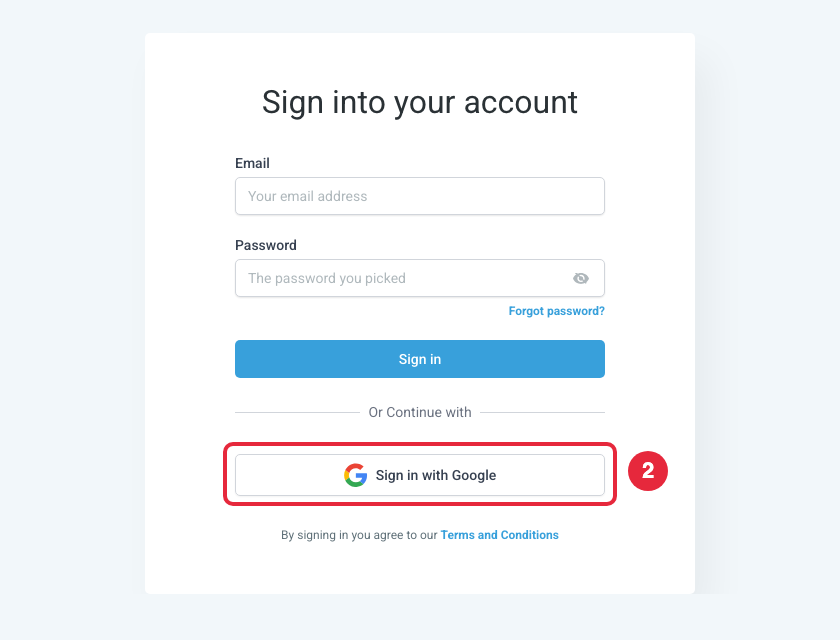
Step 3: Choose your Google account
- Pick the account: A Google pop-up window opens. Choose your Google account, or click Use another account and enter the right email.
- Verify: Enter your Google password and finish any 2-Step Verification Google asks for.
- Allow access: If Google asks to share your name and email with Cytixs, click Continue or Allow.
Step 4: You are in
- Dashboard loads: The pop-up closes by itself and Cytixs loads your dashboard.
- Pick a sub-account: If you have more than one, choose it from the account switcher at the top left.
Nothing happens after Step 2, or the pop-up flashes and disappears? Your browser blocked it. Follow the next section.
If the Google pop-up is blocked
Allow pop-ups for app.cytixs.com only, then click Sign in with Google again. You do not need to allow pop-ups for every website.
Signs the pop-up was blocked: nothing happens when you click the button, a small blocked-window icon appears at the right end of the address bar, or a bar says “Pop-up blocked”.
Google Chrome
- Click the blocked pop-up icon at the right end of the address bar.
- Select Always allow pop-ups and redirects from https://app.cytixs.com, then click Done.
- Refresh the page and click Sign in with Google again.
No icon? Go to Settings → Privacy and security → Site settings → Pop-ups and redirects. Under Allowed to send pop-ups, click Add and paste https://app.cytixs.com.
Microsoft Edge
- Click the blocked pop-up icon in the address bar.
- Choose Always allow pop-ups and redirects from https://app.cytixs.com, then Done.
- Or go to Settings → Cookies and site permissions → Pop-ups and redirects → Allow → Add and paste
https://app.cytixs.com.
Safari (Mac)
- With app.cytixs.com open, click Safari → Settings (or Preferences) in the top menu.
- Open the Websites tab and choose Pop-up Windows on the left.
- Next to app.cytixs.com, set the menu to Allow.
- Close settings, refresh the page and try again.
Firefox
- Click Options (or Preferences) on the yellow “Firefox prevented this site from opening a pop-up” bar.
- Click Allow pop-ups for app.cytixs.com.
- Or go to Settings → Privacy & Security → Permissions → Block pop-up windows → Exceptions, add
https://app.cytixs.comand click Save Changes.
iPhone and iPad (Safari)
- Open the Settings app and tap Safari (on iOS 18 and later: Apps → Safari).
- Turn Block Pop-ups off.
- Sign in to Cytixs, then turn Block Pop-ups back on if you prefer.
Android (Chrome)
- In Chrome, tap ⋮ → Settings → Site settings → Pop-ups and redirects.
- Turn it on to allow, or open app.cytixs.com in the list and choose Allow.
Still blocked?
- Pause ad blockers or privacy extensions (uBlock Origin, AdBlock, Ghostery, Privacy Badger) for app.cytixs.com.
- Try a private or incognito window, which runs without most extensions.
- Company laptops may block pop-ups by IT policy. Ask IT to allow
app.cytixs.comandaccounts.google.com.
Other common problems
| Problem | Likely cause | Fix |
|---|---|---|
| “User not found” or “No account” after choosing Google | Your Google email differs from your Cytixs user email | Pick the right Google account, or ask your Cytixs admin which email your user was created with |
| Pop-up opens, then closes with no login | Third-party cookies are blocked | Allow cookies for app.cytixs.com and accounts.google.com, or try an incognito window |
| Google keeps choosing the wrong account | Several Google accounts are signed in | Click Use another account in the pop-up, or sign out of the other accounts first |
| Stuck on a loading screen | Old cached data | Clear cache and cookies for app.cytixs.com, close the browser, then sign in again |
| “Access blocked” from Google | Your Google Workspace admin restricts third-party apps | Ask your Workspace admin to allow Cytixs sign-in |
| Asked for a 6-digit code after Google | Cytixs two-factor security check | Enter the code sent to your email or phone |
Still stuck? Email support@cytixs.com with your login email, browser name and a screenshot of the error.
Was this guide helpful?