What is the Billing Dashboard?
The Billing Dashboard is where you handle everything you pay Cytixs for, inside your own sub-account. From one page you can:
- Subscriptions: see the Cytixs plan and add-ons you are paying for.
- Payment methods: add, remove and choose the main credit card.
- Billing information: keep your billing address correct.
- Charges and invoices: check past payments and download invoices.
- Wallet: see and top up the balance used for SMS, calls, email and AI.
Find it at Settings → Billing.
Open the Billing Dashboard
- Log in: Go to app.cytixs.com. Need help? See Sign In to Cytixs with Google.
- Check the account: Make sure the account switcher at the top left shows your business name.
- Open Settings: Click Settings at the bottom of the left menu.

- Open Billing: Under My Business, click Billing.

Add a credit card
If no card is saved yet, the Billing Dashboard shows Payment Method Not Added. A card is needed before your subscription and wallet can run.
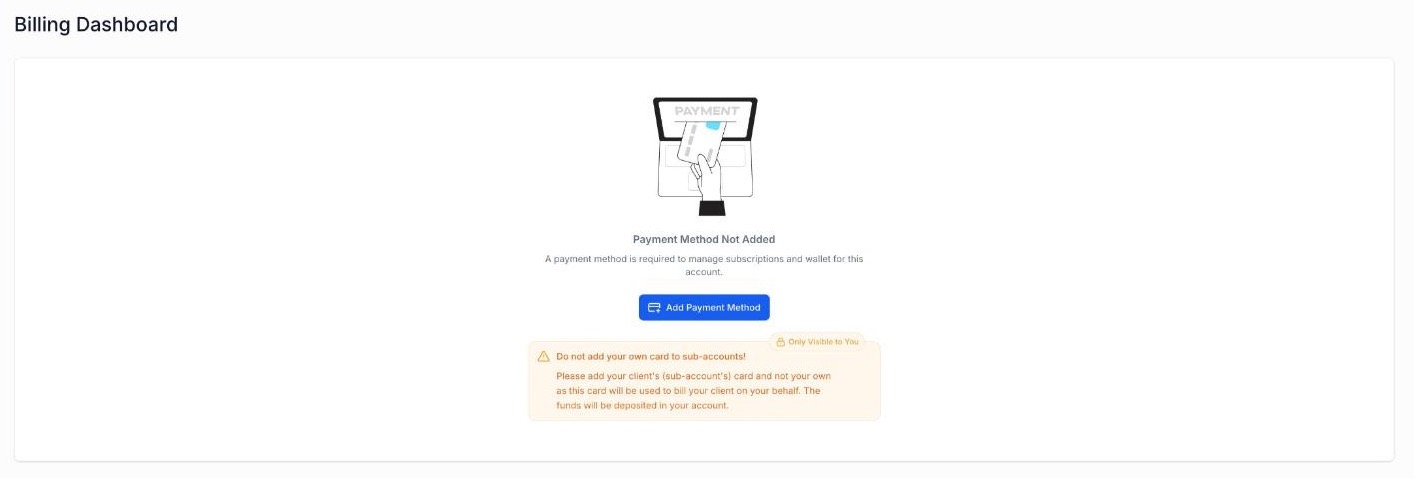
- Start: Click Add Payment Method.
- Enter your card: In the secure card form, type the card number, expiry date (MM/YY) and CVC. Add the cardholder name and country if asked.
- Save: Click the button to save the card.
- Verify: If your bank asks for an OTP or banking-app approval, complete it.
The card then appears with its last 4 digits. Card payments are handled by Stripe. Cytixs never sees your full card number.
Got a billing link from Cytixs? We may send one by email, SMS or WhatsApp. Open it, log in, and follow the same steps. Never send card details in a chat or email.
Manage subscriptions
The subscriptions area lists every recurring charge on your account, such as:
- Your Cytixs plan
- Add-on services from Cytixs
- Paid apps added from the App Marketplace
To change or cancel a subscription, contact your Cytixs account manager.
Payment methods
Here you choose which saved card pays your Cytixs bills. Keep your main (primary) card valid so wallet top-ups and renewals do not fail.
- Add a new card: click Add New Card and follow the steps in Add a credit card.
- Set a primary card: choose the card that should be charged first.
- Delete a card: remove a card you no longer use.
| When you change the primary card | What happens |
|---|---|
| Cytixs plan | Your active Cytixs subscription is charged to the new primary card from the next renewal. |
| Wallet top-ups | Automatic wallet top-ups use the new primary card. |
Delete a saved card
- Go to Settings → Billing.
- Open the Payments tab.
- Under Payment Method, open Manage your payment methods.
- Find the card and click the three-dot menu (⋮) next to it.
- Click Delete Card.
- Read the warning, then click Delete Now, or Not now to keep the card.
Add the new card first. If the card you delete still pays an active subscription, that payment can fail. Add and set a new primary card before deleting the old one.
Update billing information
A correct billing address helps payments go through and keeps invoices accurate. In the Billing Information area, click the edit icon, update your address, then save.
Charges and invoices
The charges and transaction history list every payment on your account, with its invoice, products and transaction ID.
Read the invoice list
- Products: shows the first product on the invoice. A +n badge means more products; hover over it to see them all.
- Transaction ID: shown shortened. Click the copy icon to copy the full ID, for example when you contact support.
- External badge: marks a charge made outside the Cytixs platform.
Open, view or download an invoice
- Click View on an invoice. A window shows the invoice ID, type, date, amount, card, status and products.
- Click Download Invoice to save a PDF, or View in Stripe to open it in a new tab.
- Close the window with the X or by clicking outside it.
Wallet balance
Your wallet holds prepaid credit for usage-based services such as SMS, phone calls, email and AI. Each use is deducted from the balance.
- Current balance: how much credit is left.
- Complimentary credits: free credit included with your plan, if any.
- Add Funds: top up the wallet straight away.
- Auto-recharge: when the balance falls below a set amount, your primary card is charged and credit is added automatically.
Frequently asked questions
| Question | Answer |
|---|---|
| How do I add a credit card? | Go to Settings → Billing and click Add Payment Method (or Add New Card if a card is already saved). |
| My card was declined. What now? | Check the number, expiry and CVC. Make sure online and overseas card payments are switched on with your bank, then try again. |
| I don't see Billing in Settings. | Your user may not have billing access. Ask the admin of your account, or email support. |
| Can I have more than one subscription? | Yes. All of them are listed in the subscriptions area. |
| How do I change my billing address? | Click the edit icon in Billing Information. |
| Where are my past invoices? | In Charges and transaction history. Click View, then Download Invoice. |
| How do I add money to my wallet? | Click Add Funds in the wallet area and follow the steps. |
Still stuck? Email support@cytixs.com with your business name and a screenshot of the Billing page. Do not include your card number.
Was this guide helpful?